|
Agent Import
|
 
|
|
Agent Import
|
|
Agent Import Overview
Import File Format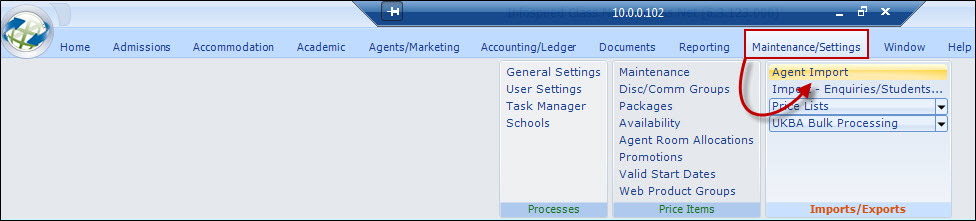
The import function
allows a file of agents to be imported into Class.
The
file MUST be in 'CSV' format (an Excel file can be saved in csv format).
Typical uses would be a file of agent enquiries downloaded
from a webpage or a file of agents needing to be added to Class.
The file to be imported must
conform to the format given in the "Create CSV Template".
Select "Create CSV Template" to see details of the layout
and the rules that are applied.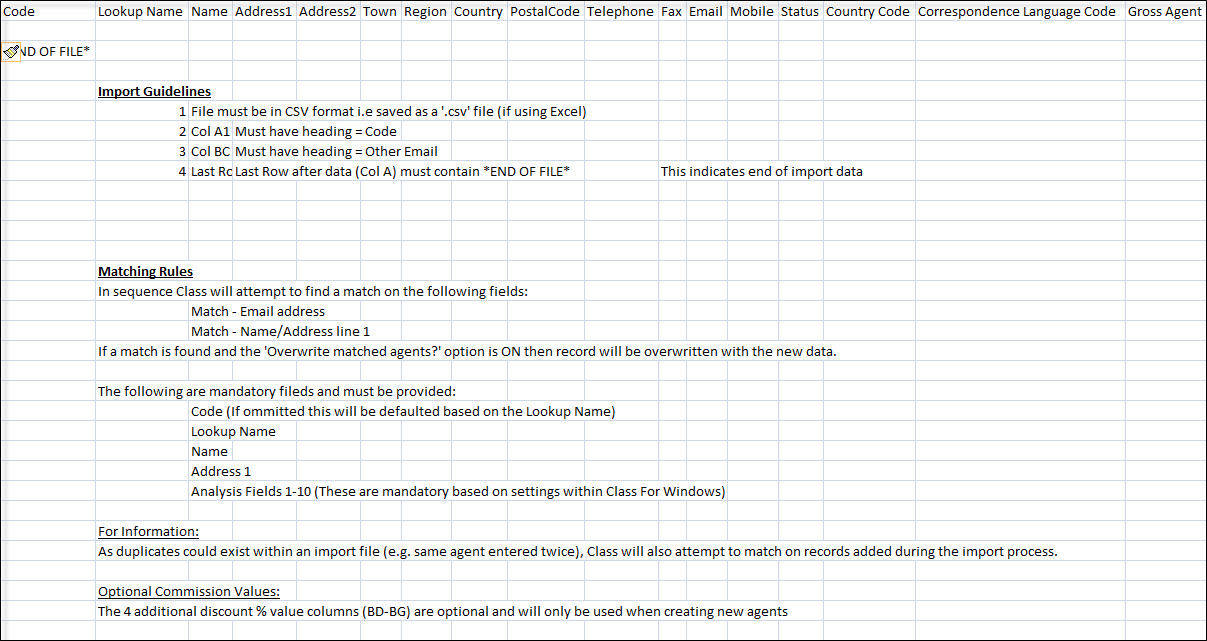
Additional information
1. As Class
requires an entry in address line 1, blank address line 1's will be
automatically entered as "*IMPORTED*"
2. If an agent is
matched with an existing record, the agent "status" (Prospective, Active,
Suspended or Inactive) is overwritten to be the same value as defined by
the Import (Prospective, Active, Suspended or Inactive).
A file not
conforming to the above will not be recognised and therefore not imported.
There is no danger if a file is "imported" multiple times
as matching records will be overwritten with the same
information.
Import Process
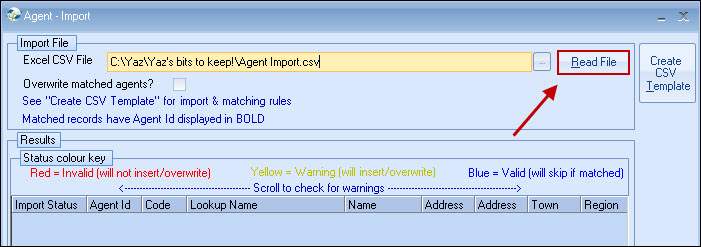
Enter the filename, or use the browse button to search
for the import file.
Select "Read File" to initiate the
checking process. A count will appear in the top right hand
corner.
On completion, the screen will indicate which records will be imported or rejected.
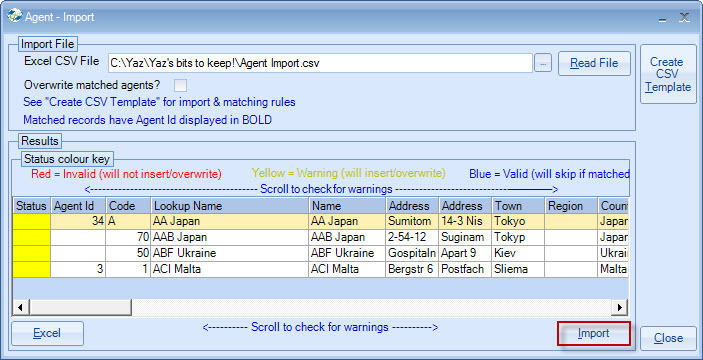
You may need to scroll the screen to see invalid fields,
which will be highlighted with a red background.
Alternatively, the Excel button can be used to print the
results for further scrutiny.
Once satisfied, select
"Import". A Pre-import Summary will advise
the status:
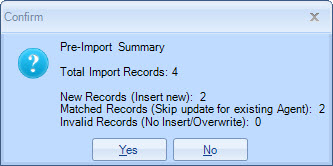
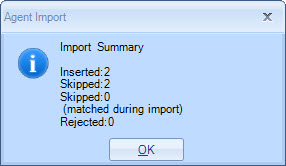
An Import Summary will advise the results of the import: