|
Maintenance
|
 
|
|
Maintenance
|
|
Maintenance
Price Items and Courses - Relationship
Price Lists - Maintenance
General First, you set up the Master Price
list. Example - General English 20 lessons MASTER PRICE = ?250 per week. Each Agent is attached to a Price list,
normally the "MASTER" Price List, whilst Eastern Block Agents would have the
"Eastern Block Europe" price list applied.
A Sub Price List is attached to a master price list,
from where gross prices are obtained. The Sub Price List is used to reflect
unique net prices for an Agent, that cannot be reflected through the normal
agent commission rules, eg. % commission on a range of specific products. A long term
course that is sold on the basis that the longer you stay, the cheaper it is,
but the Agent is paid a fixed amount for each week, eg. £30 per week booked. The above shows
why the discount percentage does not work. Normal rule: Single Master
Price List The new Master Price list can now be used to
attach all the relevant price items to it, and assign new prices. Master (Host Payment
Price Lists) Host Payment Price
Lists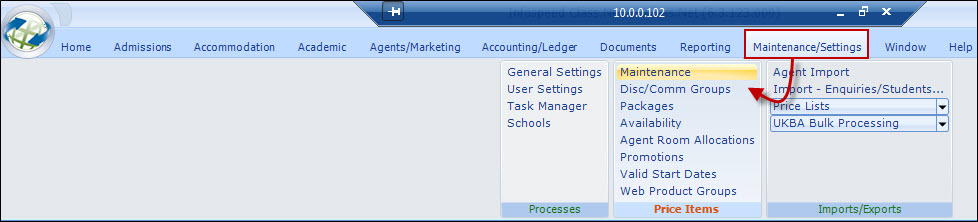
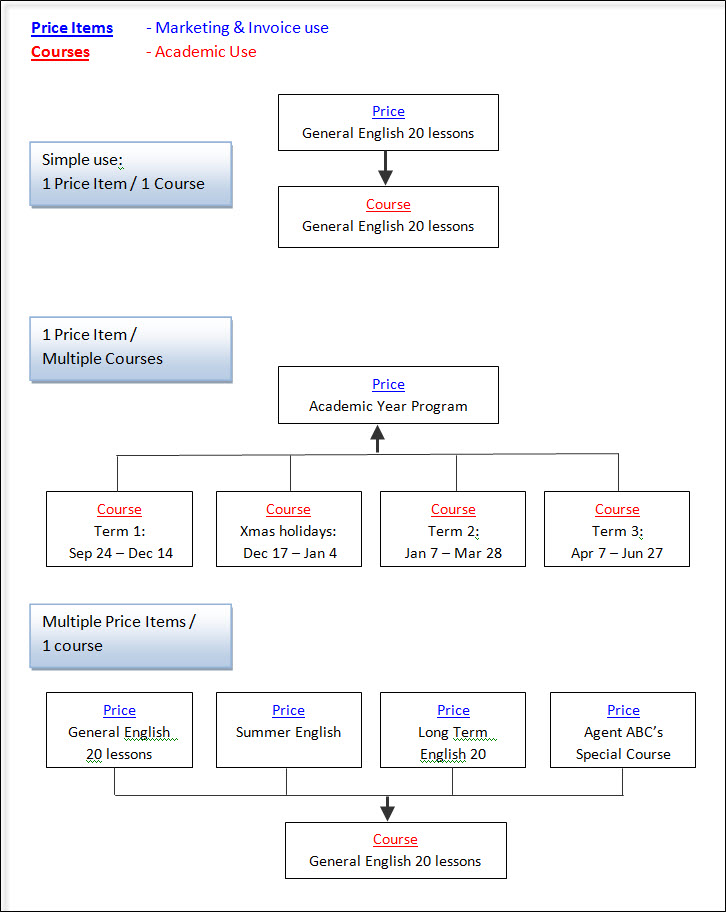
This sections shows the relationship between
Price Items and Courses
.
Price Items are marketing orientated, print on
invoices, and are used to determine the price.
Courses are internal and mainly used
for Academic purposes, although a Course may additionally print on
invoices.
The
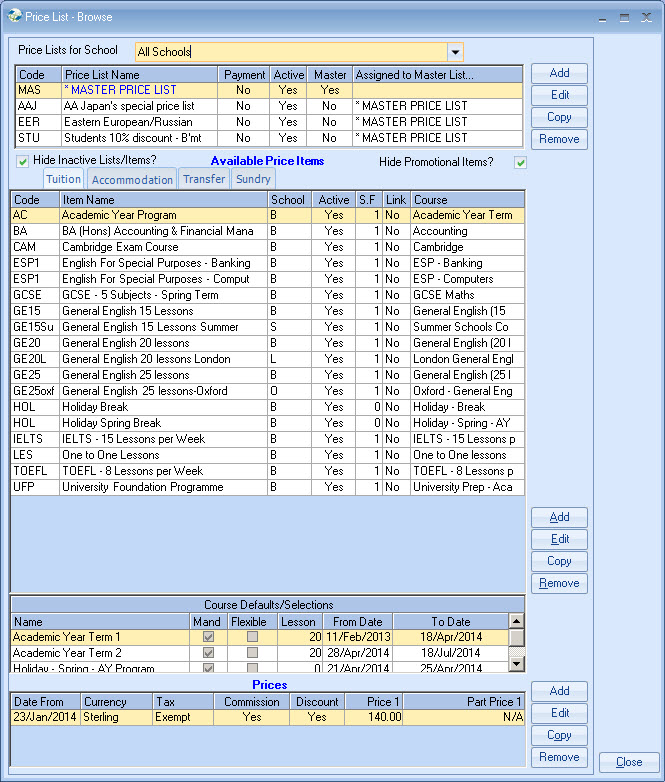
Browse screen above has 3 sections:
1. Price Lists (at
the top)
2. Price Items for the highlighted Price List
(in the middle)
3. Prices attached to the highlighted
Price Items (at the bottom)
Price Lists
The Master Price List is mandatory, and contains
the gross prices for every item sold in
Class.
The commissions or discount provided is a
related, but separate issue, and generally handled via the Agent's
rules.
Additional Master Price
Lists can be added later, if required but users are advised to only add where
really necessary.
Additional Master Price lists are
required to reflect different Gross prices (for the same products) typically in
special, in market terms, regions of the world. Examples: East European
countries, South American countries. In both these examples the Agent would earn
commission based on the reduced Gross Price (If unique Net prices apply - See Sub Price
List)
Eastern Block Europe = ?200 per week
The discount
or commission an Agent receives is obtained from the Agent record, and is based
on the attached Price List, (e.g. MASTER or Eastern Block).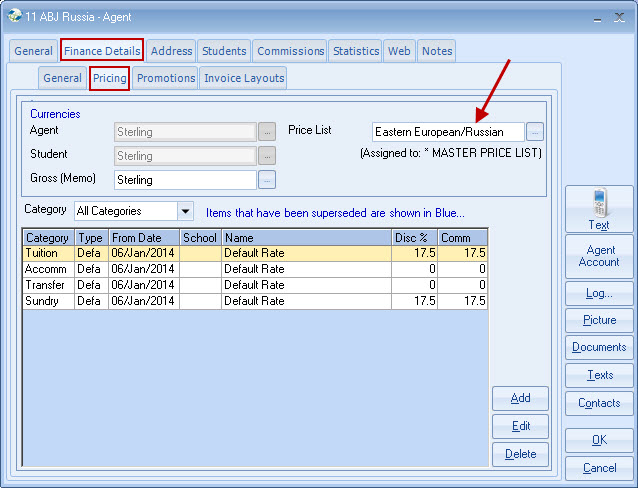
It is best shown through an example.
The simple discount/commission percentages no longer works,
so a Sub Price List is used to create the Agent's net price.
Example: Price Item, Course
A: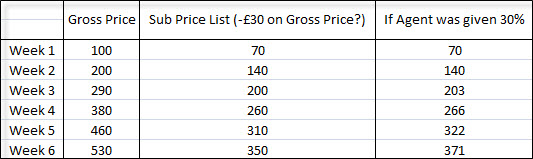
Adding new Price
Lists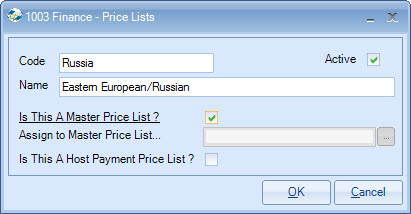
Be aware that the Price Item description is always taken
from the Master Price List.
Other than the examples above, other
options below are rarely used. 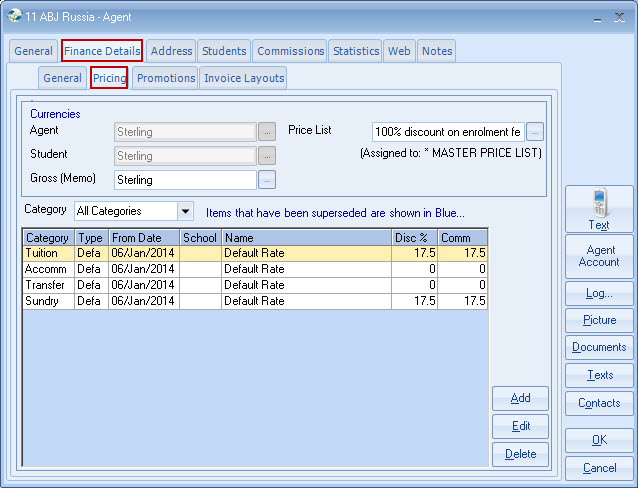
Class assumes that all hosts are paid the same
rate for the same accommodation category, eg. half-board, full board B7B,
executive etc
Example: Homestay Single B&B at EUR 200 per week; Homestay Full Board EUR 250 per week
If some hosts are paid a different rate for the same category, then a new Master Price List is required for each set of exceptions, eg. Mrs A's rates.
Sub Price List (Special "Net" Price List)
Sub Price Lists may be created for
Agent's requiring unique "Net" prices, rather than x% discount or commission
from the Master Price List.
If number of special prices
for an Agent is small, then the Agent can continue to use the Master
Price List, but have the unique prices added to his "Price" record (See
Agents). A Sub Price List is added as shown below:
Adding new Sub Price Lists
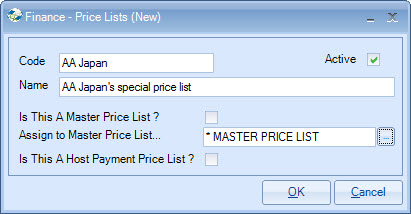
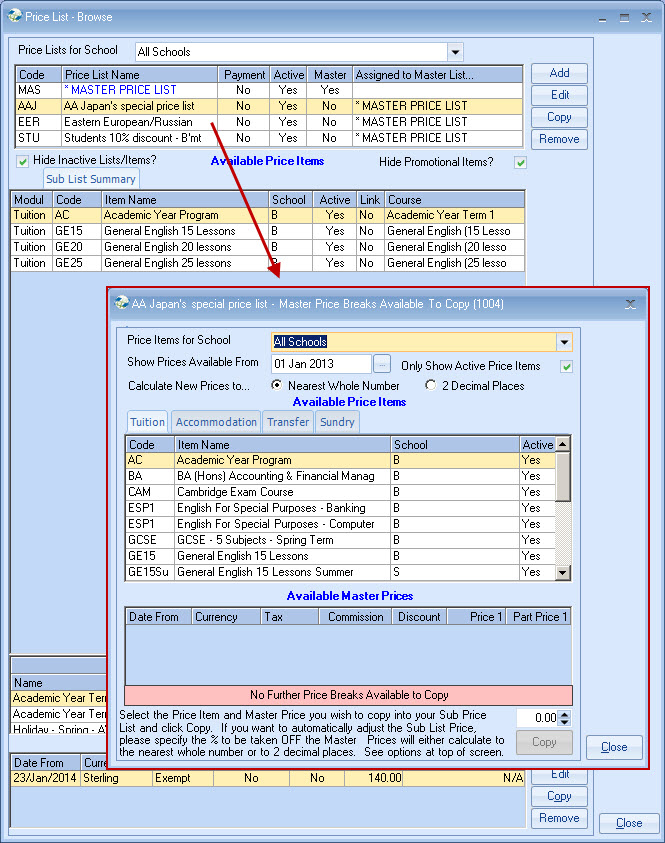
The Sub Price
List is built up by selecting items from the Master Price list (as indicated
above), and copying the price, either unchanged or with a percentage adjustment,
eg. less 10%. The new price can be edited as required.
Add the price list to the agent's record as shown for the
Master Price List above.
Sub Price List items:
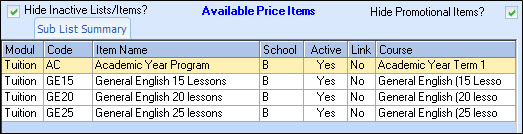
If an agent is assigned a sub price list but buys an item not contained in the sub price list, then the system will default to use the Master Price List, and then apply any relevant discounts or commissions.
Price Items - TUITION
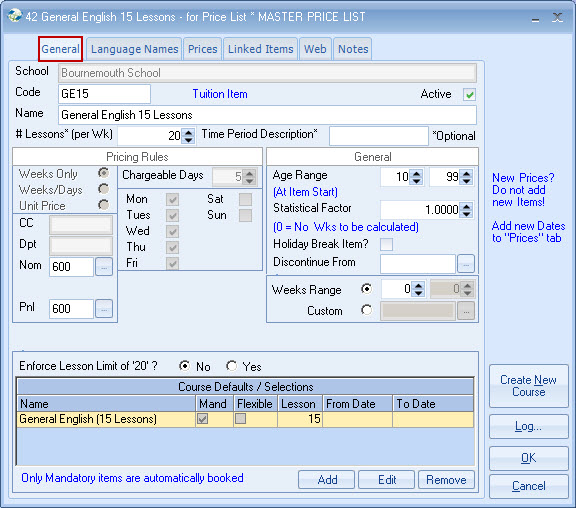
A Master Price List item is required for
every item sold in Class.
If it's a new product, a "New
Course" will also normally be required.
Add the new
Price Item first.
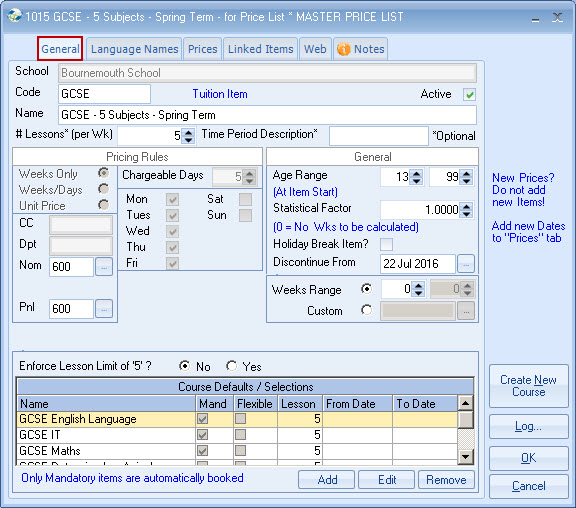
School
Selected on entry
Code
Mandatory - can be used as a short-cut entry and as a
short internal description
Active
Deselect if Price Item is no longer to be used
Name
50 characters (prints on invoice)
# lessons
(per week)
If applicable, enter # of lessons. This
can be printed on the invoice, if required, or used in the booking process to
validate that the course lessons (attached to the price item) do not exceed this
total.
Time period
description
An optional description that can be
printed on the invoice.
Weeks
only/Weeks/Days/Units
Select as appropriate. Most
tuition items are normally "weeks only", meaning any booking containing odd
dates would be charged at the full week rate.
One to
one lessons are normally "unit" priced, ie. sold in numbers rather than by
reference to dates.
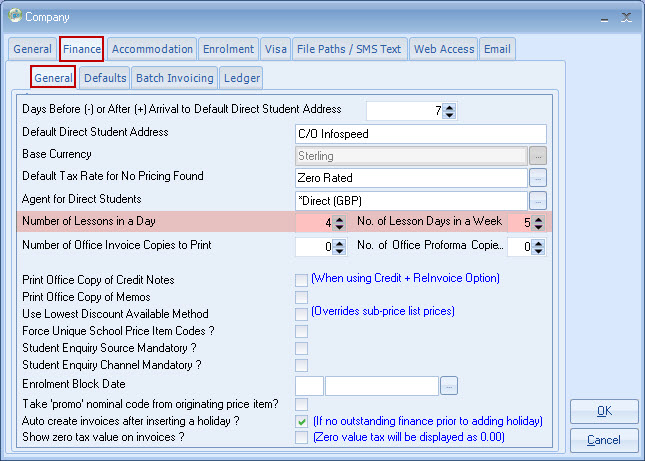
A "unit" (lesson) has a student week value calculated, based on the rule in the settings (Maintenance/Settings > General Settings > Company > Company > Finance):
Chargeable
Days
Tuition items are normally "5" (Mon-Fri). If
the course only runs on certain days, eg. Tuesday and Thursday it is still
best to leave the days and value set to "5". A course which runs 7 days a week
is best set to 7
Enter Cost Centre/Department/Nominal
Codes.
If the ledger system is in use the codes come
from Settings/Invoicing/CC, Dept, or Nominal.
Accounting Codes
(CC/Dept/Nominal)
If Ledger is in use:
Accounting codes are dynamically established when reports
are produced, ie. are looked up and not stored. Changes to codes are
therefore retrospective to the start of the system.
Age Range
The student's age is checked when the item is booked
and a warning is displayed if the age criteria are not met when checked against
the start date for this item. An age range of 0-99 means no check.
Statistical
Factor
Student weeks (course duration) are
calculated during the booking process. The result is multiplied by this factor,
allowing part time courses to be given a lower value, eg. 0.50 if required.
The factor is normally changed to zero for non-academic items, eg. Holidays,
Sport, Course discounts etc.
Discontinue
From
Only enter if item is to be discontinued
eg. from 31 December 2012. The date is compared against the date range of
the item booking (From and To dates) and a warning displayed when
appropriate.
Enforce Lesson
Limit of 'n'
This is a method for controlling course
entries in a tuition booking by reference to the number of course lessons.
If set to 'yes', the following is checked by the system
when creating or amending a tuition booking:
Example: Price Item lesson
limitation
Price Item weeks x Price Item lessons
10 weeks x 30 lessons = 300
Course Limitation (Weeks x Lessons = max
300)
Course 1 = 10 weeks x 20 lessons = 200
Course 2 = 5 weeks x 10 lessons = 50
Course 3 = 5 weeks x 10 lessons = 50
Total = 300, and is therefore valid.
If the lessons limit is exceeded, the user will need to
adjust the course booking.
The
# of course lessons is taken from the course record.
Course
Defaults/Selections
Add
Default Courses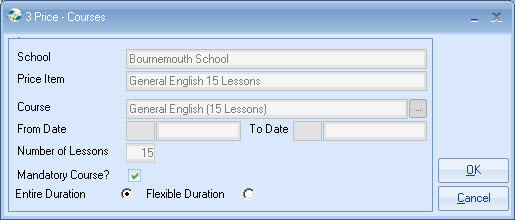
Select the course from the list. If
dates have been preset in the course record, they will be displayed (From and To
Date). If the course is not available, use the "Create New Course" button to
add.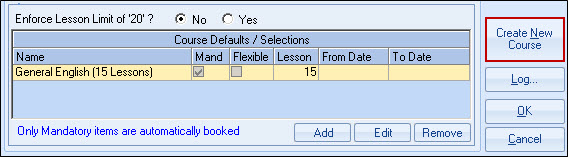
If courses are already listed, the
"Create" option will not be allowed and the user will need to add more courses
from the "Course" screen.
Flexible/Entire Duration (Web Bookings module only)
Web Bookings: Flexible - if this is selected, the course
dates are amendable on the web.
Entire Duration means
the course dates will be fixed in line with the Price Item dates.
The booking process will use Course default (from and to)
dates when available.
Mandatory Course
If selected,
the course will automatically be booked.
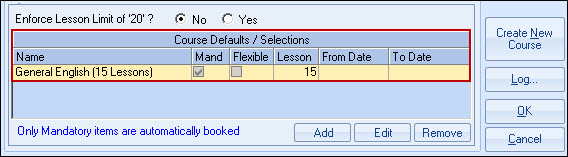
Examples:
The flexibility of
multiple courses allows a wide variety of possibilities; so, for example, it is
possible to create a Price Item for an Academic Year course to which a number of
courses are attached and automatically booked.
If
preset course dates are used, holiday breaks may also be preset. See example
below: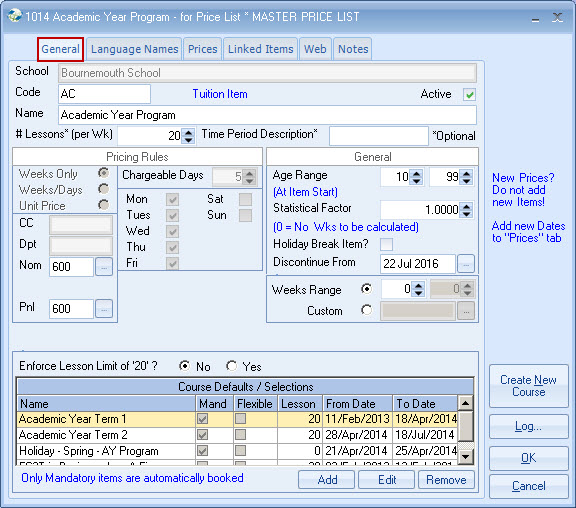
Above, courses appear in
Mandatory/Alphabetical order.
In the Booking, courses
appear in From/To Date order.
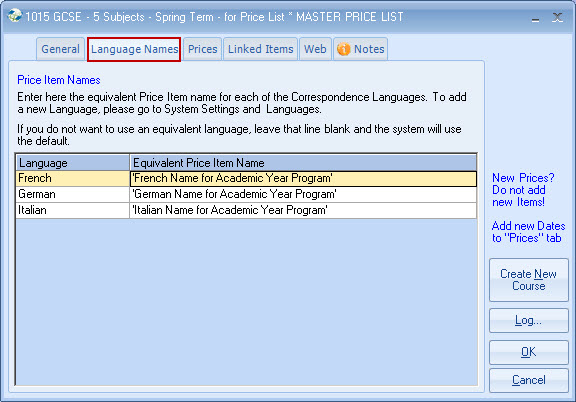
Equivalent Price Item Names
Enter the Price Item Name in the appropriate language
(if required).
And Agent with a default language of
German will have the German name shown on all documents and invoices.
If the German value is not entered, the system will use the
name on the front screen (the default value, in this case English).
Users not requiring this function do not need to enter any
information.
Prices
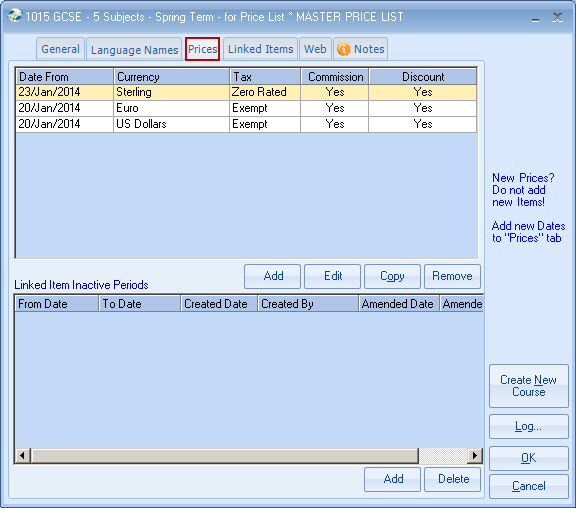
From Date
Start date for the price. To avoid seasonal mid-week
pricing changes, it is best if the date is a normal starting day for the item
eg. Course - Monday; Accommodation - Saturday or Sunday. Having prices starting
mid-week may create confusing price breaks.
Seasonal Pricing - Example
calculation:
8 weeks booking: 3 weeks at
the winter rate, & 5 weeks at the summer rate.
3 weeks of the winter rate (week 3 of the price table)
5 weeks of the summer rate (week 5 of the summer table)
If variable pricing is employed, eg. the longer you book,
the lower the price. The above method is likely to overcharge the student.
Currency
A price entry is required for each currency required
for invoicing.
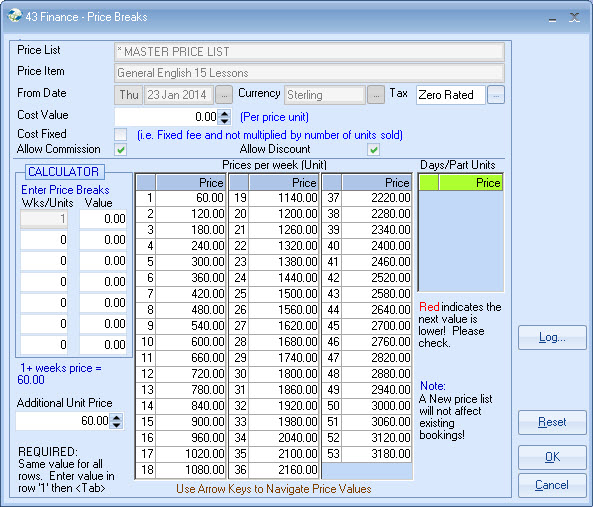
"The longer you stay, the cheaper it is"
Example:
1-8 weeks = £100 per
week
9-12 weeks = £90 per week
13-26 weeks = £80 per week
Over 26
weeks = £70 per week
Enter details into the calculator as below. Note the red figures which show the formula produces higher prices for
less weeks!
Adjust by direct entry to the price
field.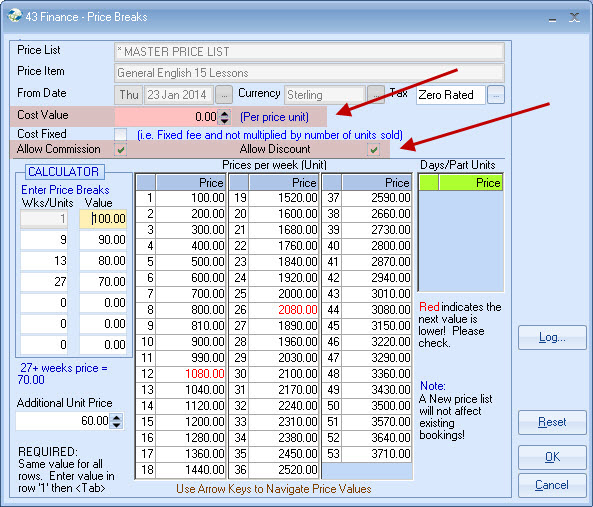
Cost Value:
This can be
assigned to a Price Item for a given period.
It allows
a very basic comparison between what a product costs and how much is charged for
it.
Allow
Discount
Select if discount is allowed
(automatically selected for Tuition items)
Allow Commission
Select if commission is allowed (automatically selected
for Tuition items)
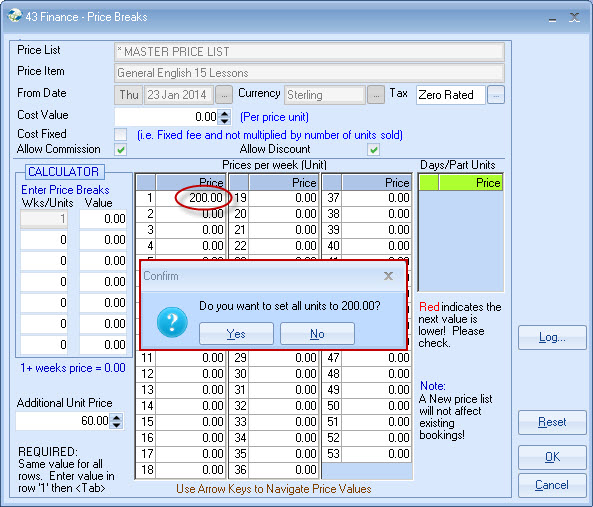
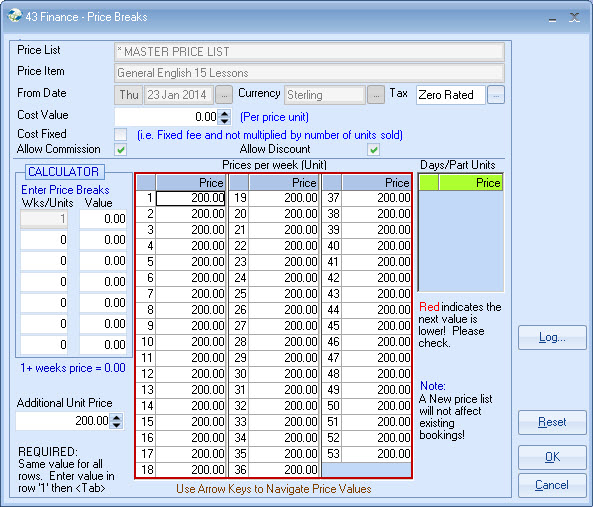
A value
entered in week 1 only (then tab) will have the value repeated for all weeks,
2-53.
Part Units
Used for invoicing, or paying days for
accommodation.
The system will create a pro-rata of the
weekly price but can be manually changed. The below example shows setting day 6
= the weekly rate.
This means for example
Sunday-Saturday (6 nights) will be charged or paid the same as 1 week (7
nights).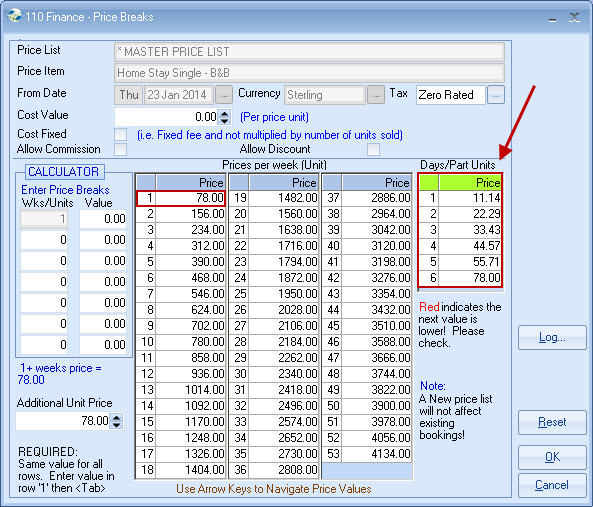
Linked Price Items
These can be used for:
Linking
an accommodation booking fee to each accommodation price item;
Linking a discount to a course;
Linking an exam fee to a course:
(Extended Descriptions: Add further Price Items (zero
value) for the same category. To ensure the items appear in the correct
sequence, use the same code plus a suffix to the code, GE15a (line 1 extended
description), GE15b (line 2 extended description)).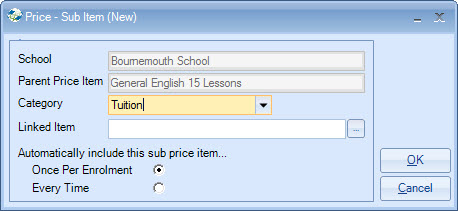
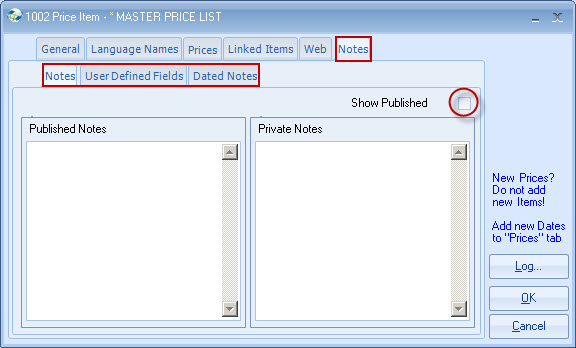
Price Item Notes
If "Show Published Notes" is ticked, the note will
pop up when the price item is selected during the enrolment entry.
Price Items - ACCOMMODATION
Input is
similar to Tuition, except Accommodation requires the creation of 2 Price Items
(Invoice Charge & Home Stay Payment rate).
The 2
Price Items then need to be linked together.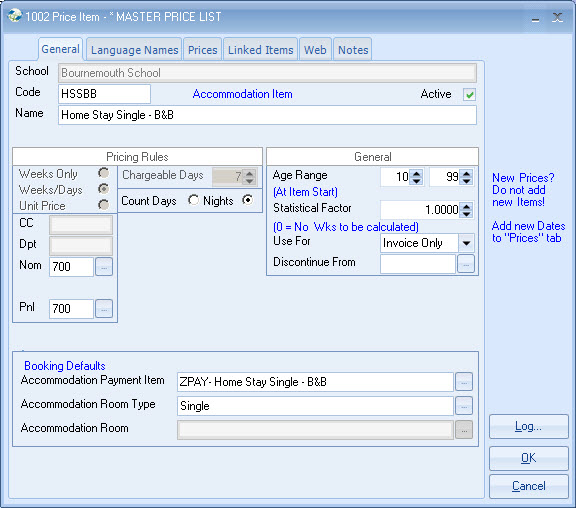
Creating Accommodation Price Items:
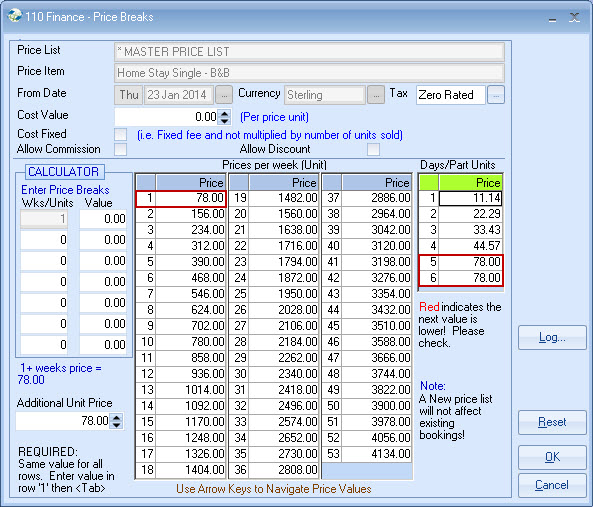
Count Days/Nights
For most accommodation prices, "nights" are counted,
not days!
If accommodation is invoiced as a "week" for 6
or 7 nights (eg. Sunday-Saturday or Saturday-Saturday), the rate for day 6 should be the same as the weekly rate. In
the example below, the rate for 5 or 6 days is shown as the same as the weekly
rate.
Use For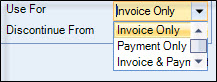
Invoice Only - is used for Accommodation Sale Prices
Payment Only - is used for Accommodation Payment Items
Invoice & Payment - are for backwards compatibility and
users are advised to select one of the 2 options only.
Accommodation Payment Item
Price Items are required for "accommodation payment"
rates and a separate price record should be created for these.
Copy the "invoice" item and prefix the Code/Name with a
"Z". This "Z" will make it easy to identify and ensure it is listed at
the end of any alpha list.
Example:
Code: ZHSSBB
Description: ZPAY
- Home Stay Single - B&B
Having created 2 price items (Invoice &
Payment), the items need to be linked together.
Edit
the "Invoice" item (General screen) and then add the "Payment" item at the
bottom of the screen. See below: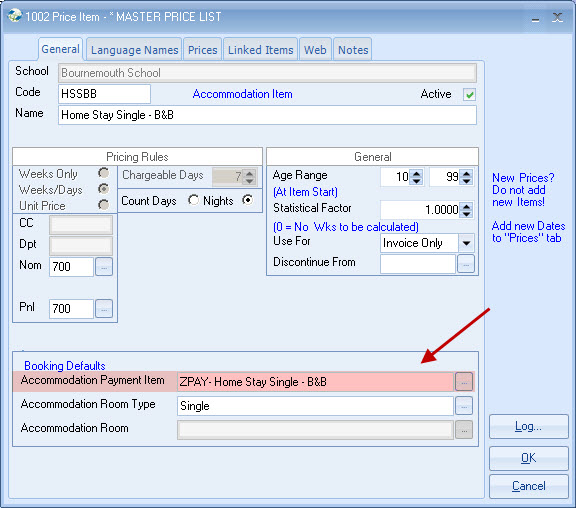
Other Accommodation Price
Items Issues:
No Payment Required
Eg. hotels,
B&B's, residence etc.
Normally paid by invoice, not
by the Host Payment run.
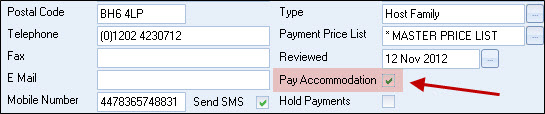
To
ensure no payment is made via the Host Payment run for these, the accommodation
record is set not to "Pay Accommodation".
A "payment"
item is still required, so create a Payment price item by copying the "Invoice"
record as described above.
Student - Private (Own)
Accommodation
Students making use of own
accommodation.
It may be useful to set up 2 price items
(sales and payment) with zero value, eg. "Accommodation Not Required" and
"Z-Accommodation Not Required" linked together. It is also avoidable to create a
"Host" called "Not Required" (1 x room with 100 beds). All the students not
requiring accommodation can then be booked into this family!
Create Host - "Not Required" and
unset "Pay" flag.
Host Accommodation but Student
pays host directly
Create a zero value price item
for each accommodation type, eg. "Host Family full board - student pays", "Host
Family half board - student pays" etc.
The payment item
"Student Pays Accommodation" should be set at zero.
Accommodation is allocated to the student in the normal
way.
Compensation/Retainer
If
compensation or a retainer is paid when a student goes "back home", then 2 price
items with the appropriate rates is required.
The price
item is then "booked", during the student's absence.
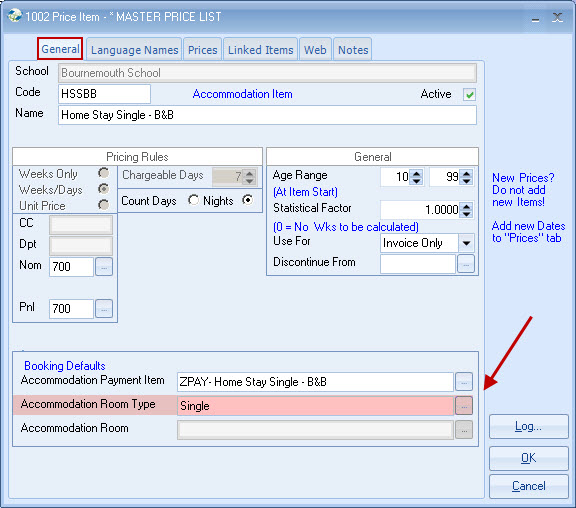
Accommodation Room Type
Generally, entry is not required. Entry of a room type
restricts the accommodation searches to a room of that type.
For example, if set to "Single", then double or twin rooms
would not be included in the search!
Use for special
rooms eg. "residence room".
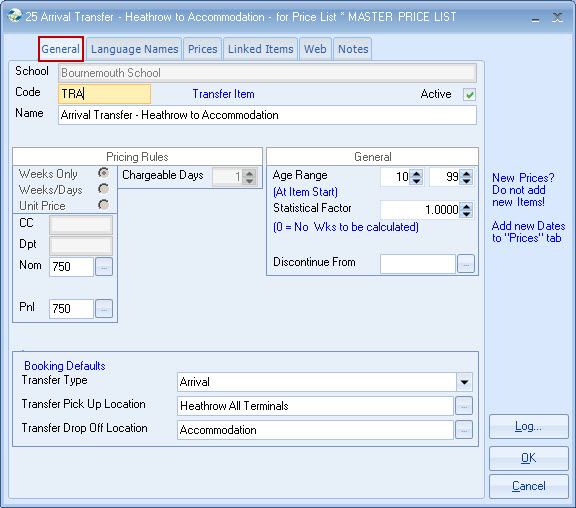
Price Items - TRANSFER
Entry is the same
as for Tuition items except for the fields at the bottom of the screen.
You are advised to set up a "No Transfer Required" item
(zero value), to be used for students not requesting a transfer. This will show
on the invoice to confirm that a transfer has not been requested.
Pick Up and Drop Off locations should be set as
appropriate.
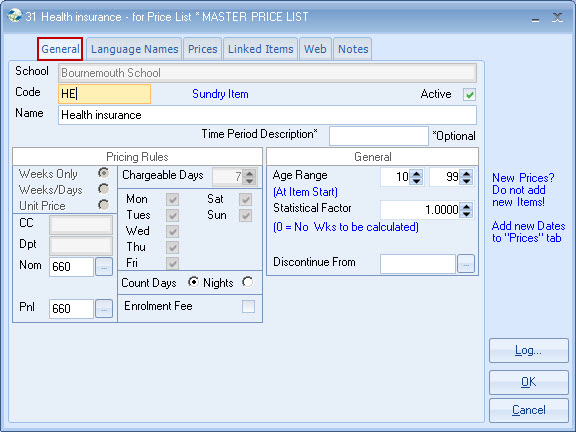
Price Items - SUNDRY
Entry is
broadly the same as Tuition items.
Tick the "Enrolment
Fee" box if applies (only used by the Trust Accounting Report -
Australia/NZ)
Additional Options
(in Company Settings)
Discounts/Commissions - Additional Method
Settings - Use Lowest Discount Available Method - this overrides sub price lists. In this scenario, the sub price list system is used to indicate the minimum price an item may be sold for)
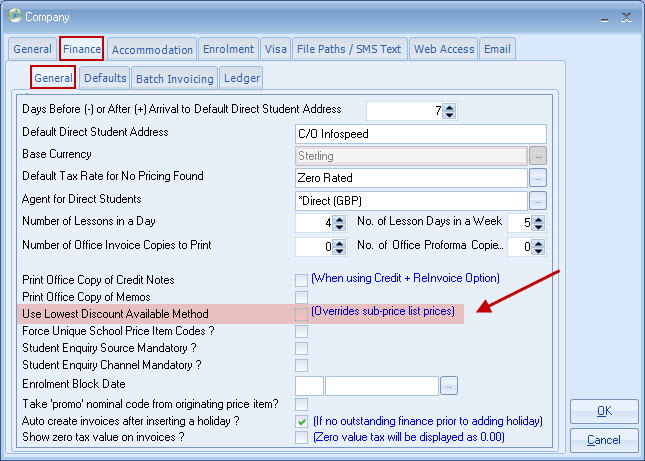
In determining the Agent Discount/Commission
on a finance line, the system will use the sub price list if this represents a
smaller discount than the rate set in the Agent's record.
Example:
Course A = £100 per
week
Sub Price list = £85
Agent
Discount = 20% (£80 per week)
The system will only allow
15% discount/commission
Conversely:
Course A
= £100 per week
Sub Price list = £75
Agent Discount = 20% (£80 per week)
The system will only allow 20%
discount/commission
The Price Item has an override flag so that the full sub price list can be used.
Copyright 2013
Infospeed Limited