|
Task Manager
|
 
|
|
Task Manager
|
|
Task
Manager
General Schedule
Intervals In a similar way, there could be
several weekly reports, eg. one running every Monday morning, and one running
every Friday afternoon. A warning
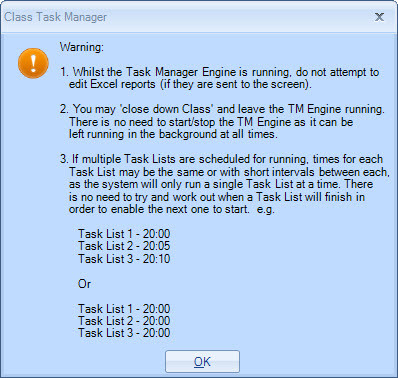
message is displayed advising of key issues when running the schedule - PLEASE
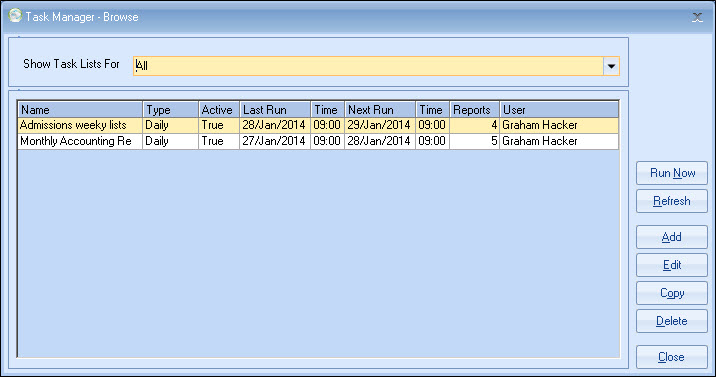
READ: Schedules for individual or "All"
users may be displayed. A new schedule is
always created in the user's name, and that user is the only
person allowed to run that schedule. Enter Name &
Description: Tab to the
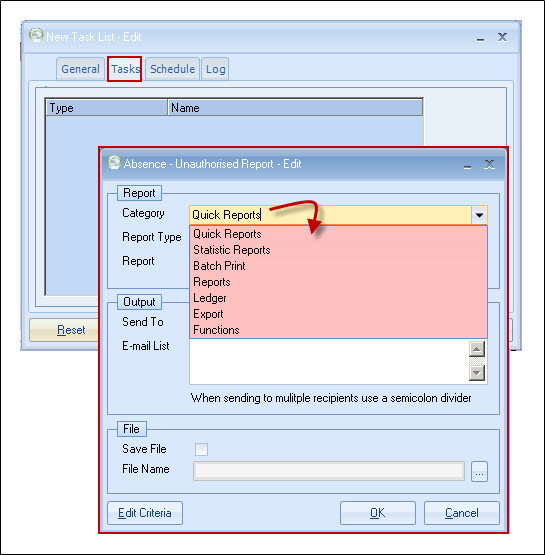
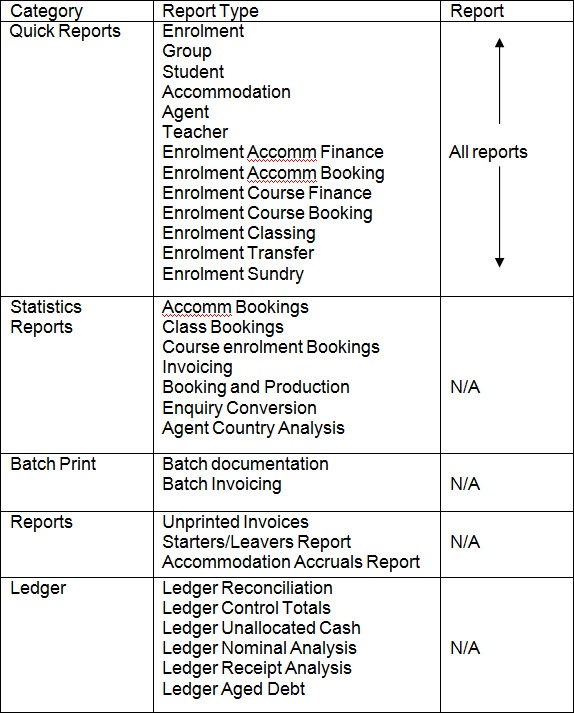
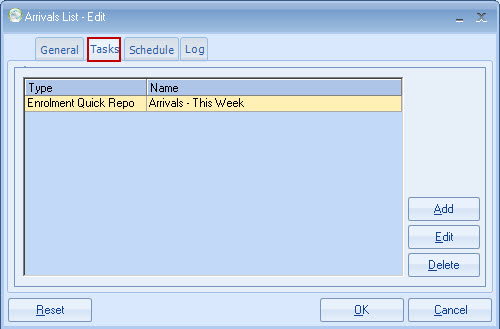
'Tasks' tab and "Add" a report. There are 5
categories and a variety of report types and reports (see list
below): Add schedules required: Output If email is
selected, a warning will display: This clearly advises that unattended
emailing, in practice, requires the use of a Microsoft Exchange server. Save File: If the report is to be saved, enter
the destination file details.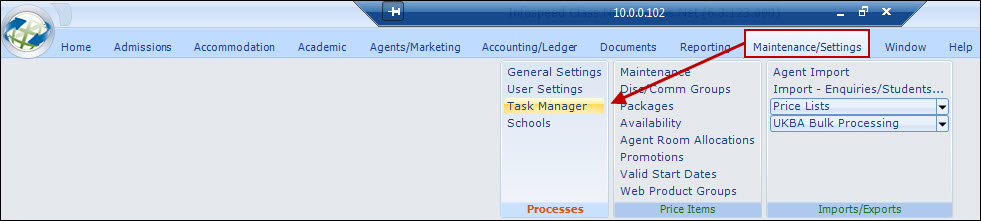
The Class Task
Manager enables you to run many reports, statistics and processes at any
scheduled time, or at regular intervals in a continuous unattended run (eg. over
lunch or overnight).
The Task Manager, on completion, can automatically set
the selection dates forward by the period of the schedule, eg.
weekly/monthly.
This allows reports/processes to be run fully automatically
at the pre-set intervals, every day/week/month/year.
Excel output can be
either displayed and saved, printed or emailed.
For example, the weekly
statistics could be automatically produced every Monday at 6AM and emailed to
all recipients.
Multiple schedules can be created, eg. 2 x daily
admissions schedules, 3 x weekly admissions, monthly and annual accounts,
marketing monthly etc. For example, if a document batch print was to be run 3
times a day (morning, afternoon and evening), then 3 schedules could be created,
each one starting at a different time, eg. 11AM, 15PM, 19PM.
The sole function
of these 3 schedules could be just to process the documents. Other
schedules could be built to do other daily tasks.
Creating a schedule
There is no function that allows the
running of "All" schedules.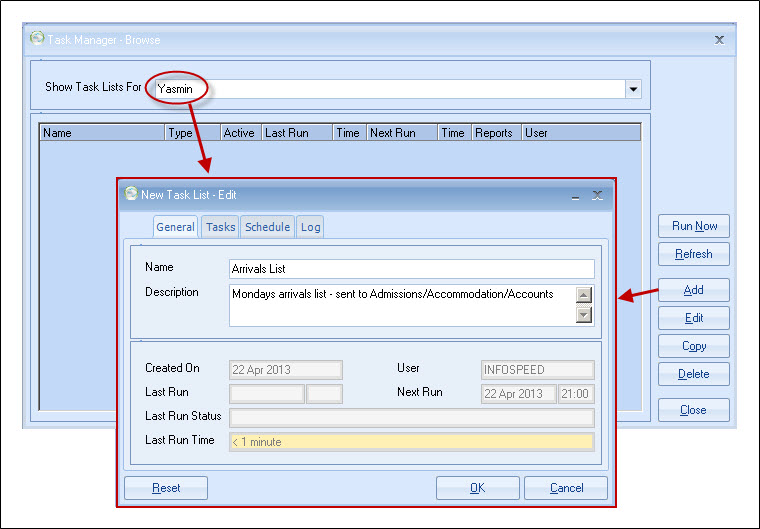
Screen/Printer/Email (users with MS Exchange
Server only).
This
is a result of a security patch issued by Microsoft which releases a
warning that a "third party" product is trying to access Outlook (Class!). This
warning has to be individually responded to or the email will fail.
For users
of MS Exchange server, MS have provided a patch which allows this warning to be
suppressed.
(Please contact the support desk if you need any clarification in
this area).
Without the suppression of the warning message, the schedule will
fail.
Excel extensions are not required (eg. .xls) as
the system will automatically append this.
On selecting OK (first time
around), the system automatically displays the "Edit Criteria" screen to enable
a check to be made that the variables are correct. (Only a selected range of
criteria is selected).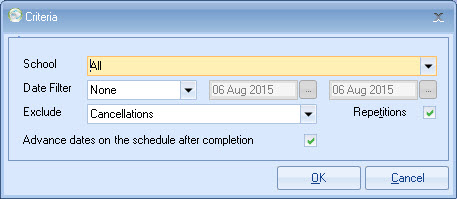
Advance
dates on the schedule after completion:
If set, on successful
completion, the "criteria" dates will be rolled forward according to the
schedule interval eg. a daily schedule will roll dates +1 day, and a weekly
schedule will roll the dates +1 week etc.
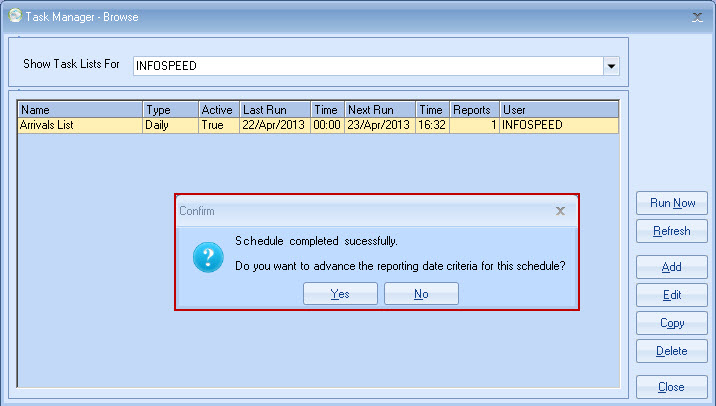
If a schedule is started by hand, ie. "Run Now", dates are not automatically rolled forward; instead a prompt is displayed asking whether this is required.
The example below shows a mix of admissions, marketing and accounting processes, but if required these could have been 3 separate schedules.
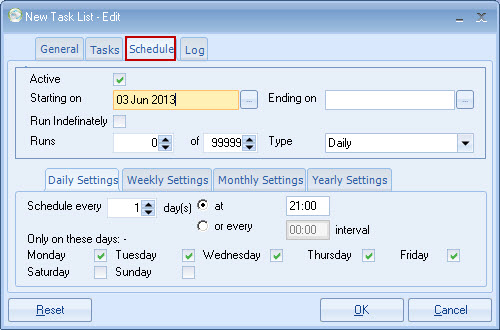
Schedule:
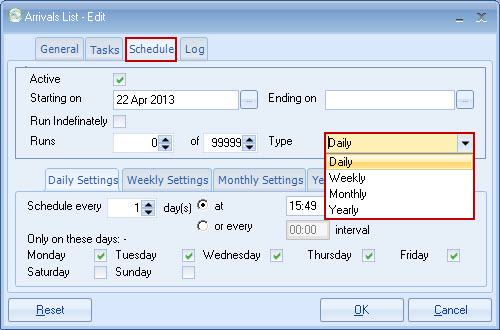
The range of options is
self-apparent and should be set as required.
At any stage the schedule can be
"Reset" and the variables re-entered.
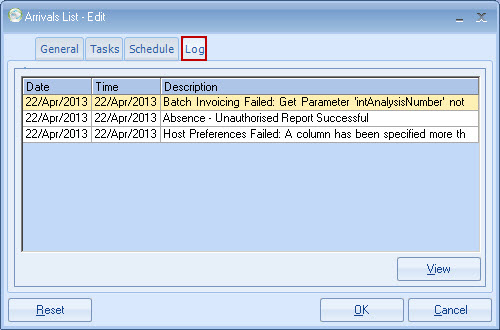
Log:
Start scheduler running:
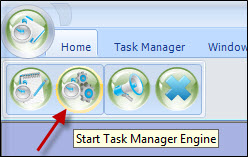
The process will start in accordance
with the schedule.
If the scheduled
time has already passed, the process will start immediately.
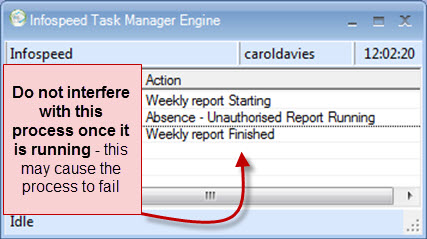
Once started, the process can be left
running indefinitely.
The display above will be updated
automatically.
This is the only item that needs to be kept running.
Class
can be closed in the normal manner.
The Task Manager has been designed in
this manner to prevent unauthorised access to Class, eg. overnight.
Running a schedule now:
On completion, the system will want to know if the "schedule" date is to be rolled forward.
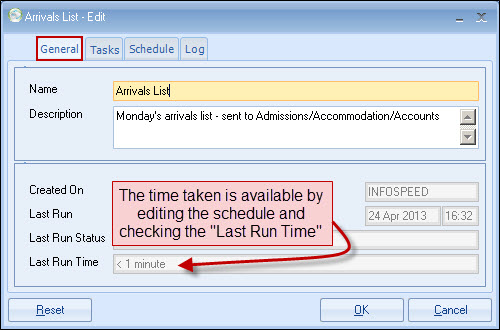
How long did the process take?
Copyright 2013
Infospeed Limited