|
UKBA SMS Bulk Reporting/Export
|
 
|
|
UKBA SMS Bulk Reporting/Export
|
|
UKBA SMS Bulk
Reporting/Export Relevant details from Visa-dependent
enrolments can be exported, creating a file for uploading to the UKBA website.
Prior to using
this facility, ensure the following have been set up: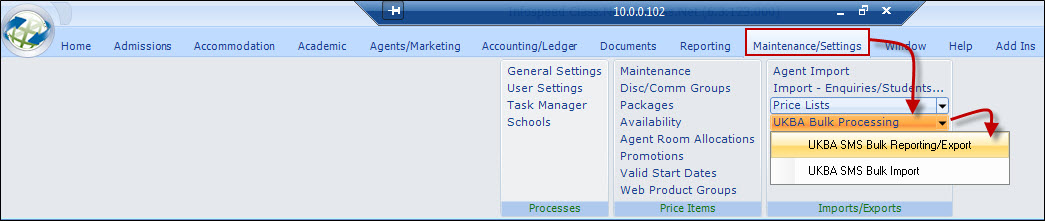
Infospeed has maximised what can be achieved in relation to the limited
functionality provided by the UKBA.
School
Record:
Under Maintenance/Settings >
Schools.
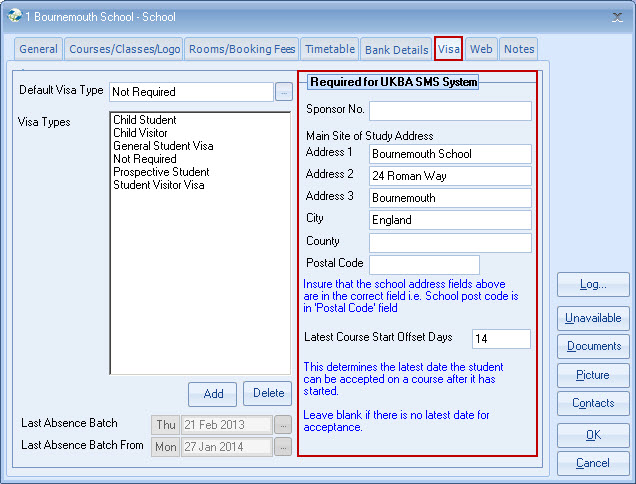
Check UKBA details are correct.
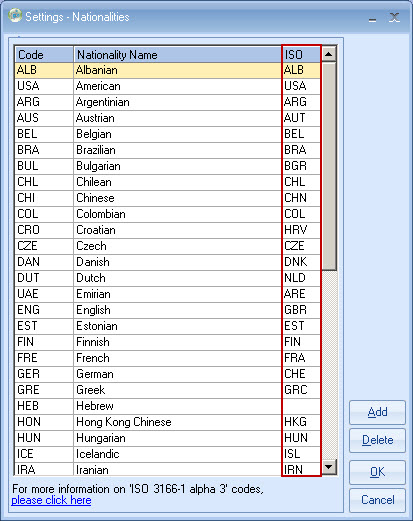
Country/Nationality ISO codes
validity:
Maintenance/Settings > General Settings
> Company > International > Nationalities.
Maintenance/Settings
> General Settings > Company > International >
Countries.
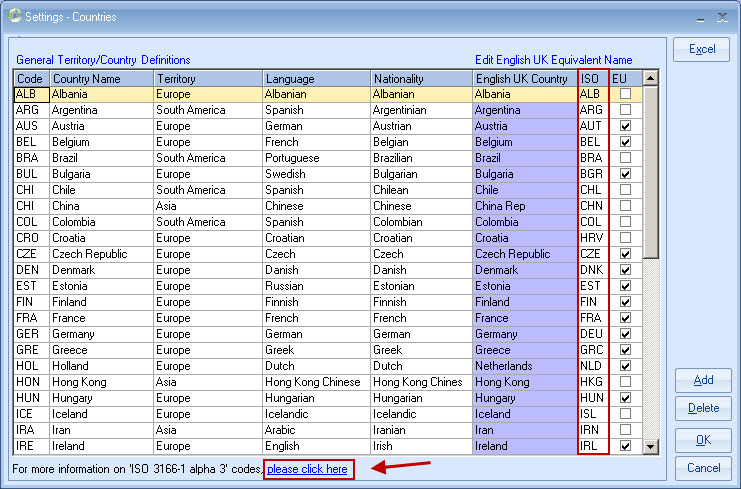
Use the link at the bottom of the screen to get a full list
of available codes and manually update accordingly.
Wrongly entered codes
will be checked when the export is prepared and any invalid codes will need
correcting.
Report/Export Browse
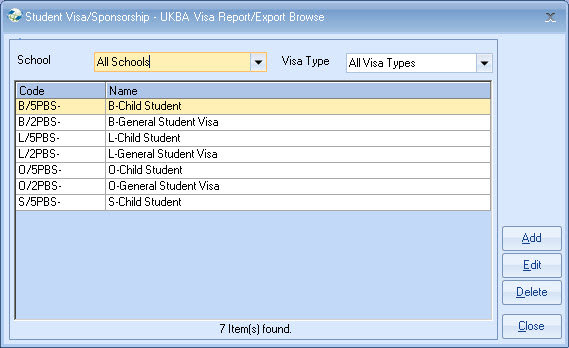
For UK schools, the upgrade will
attempt to create the following reports.
Note: Child and
adult files for each school are required.
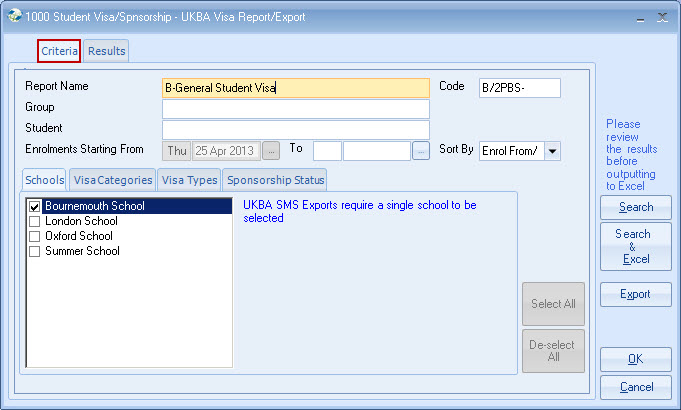
Please remember to enter filters at
the bottom of the selection screen.
Returned results can be exported to
Excel, prior to export.
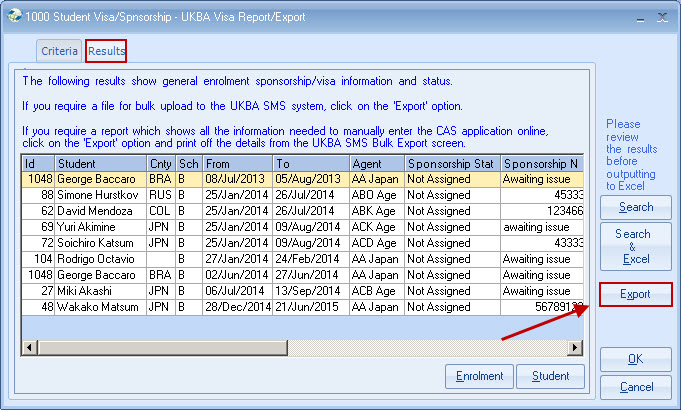
For a manual or file update to the
UKBA SMS system, select "Export".
Note: The Excel button
(prior to export) provides limited detail. (Export first then use Excel if
manual update is required).
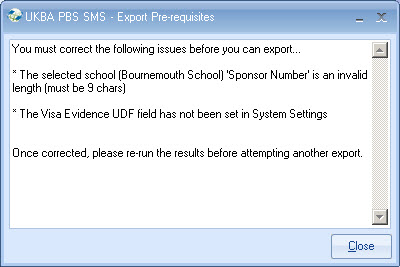
The sample
screen below shows export records (in red) failing UKBA validation, and must be corrected before the export
file can be created.
Even if the update to the UKBA website is to be done
manually, records should be corrected to ensure their integrity prior to
producing the Excel report.
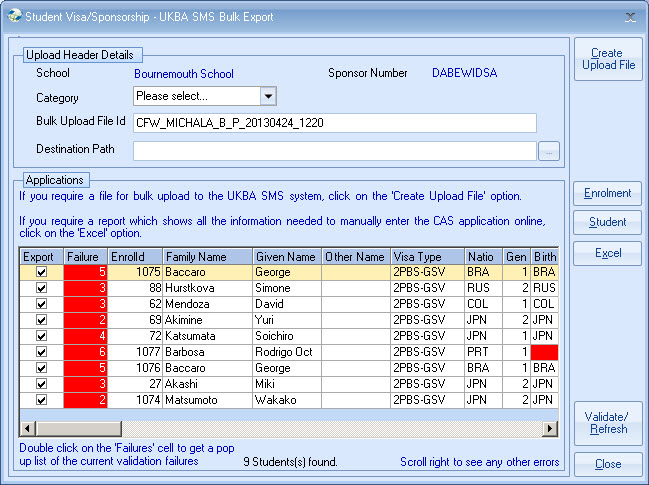
Validation failures are shown in a notepad
(double click 'Failure' cell).
The notepad can be moved/minimised whilst
correcting records (double-click row to correct record).
After correcting validation failures,
users wishing to create a file for upload to the UKBA SMS website should follow
the following instructions.
Please note UKBA have not provided a means of
directly sending the file to them, and the process below is the only method
provided.
Create/Upload Instructions
Before clicking "Create Upload
File", ensure that the 'Category' of either 'Child' or 'General' has been
selected from the dropdown list and that the 'Destination Path' has been
specified.
Once the file has been successfully created at the
'Destination Path' location, the enrolments linked to the export records will
have their Sponsorship Status field automatically updated to 'Requested'.
After the
creating of the file, a message will indicate successful creation and also give
the option to open up the UKBA SMS website login screen.
Browse to the XML
file using 'Windows Explorer' or 'My Computer'.
The export file
needs to be sent to the UKBA website in a compressed .zip format.
This can
be done using a compression tool such as WinZip, or alternatively you can use
the built-in compression utility with Windows XP.
Right-click on the xml file
in Windows Explorer and select 'Send To' from the pop-up menu, and then select
'Compressed (zipped) folder'.
The subsequently generated .zip file can now be imported into, and then viewed from within, the SMS website using the functionality provided online.